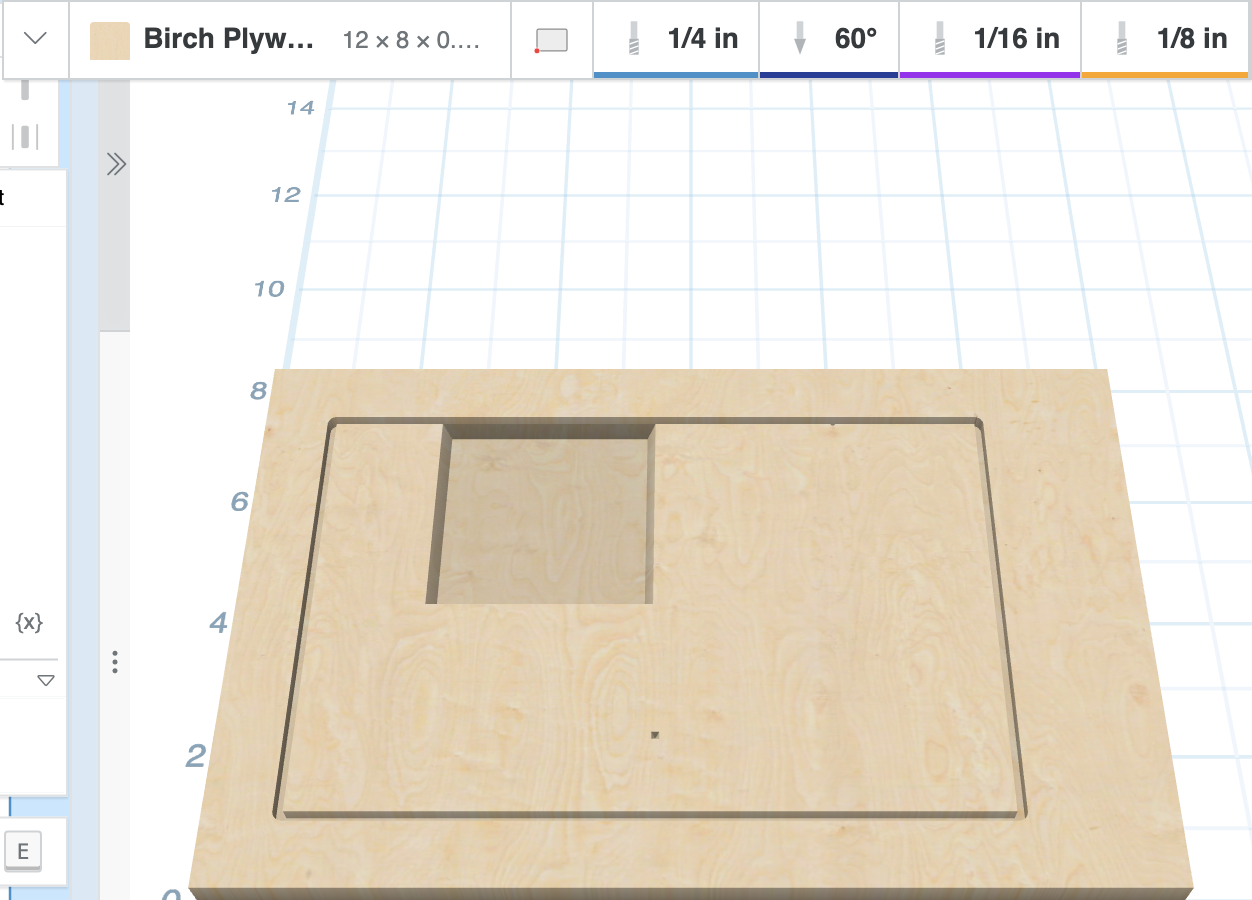
Your material, work zero, and bits now fit on a single slim line above the 3D preview, and every bit is color-coded by the pass it carves, the same colors the toolpath legend uses. The carve walkthrough picks up those colors too, so you can match the bit in your machine to the pass you're about to run at a glance.
Collapse the toolbar

Once your material and bits are set, click the arrow at the left end of the toolbar to collapse it to a single line. Each setting keeps its icon and value, so you can still see what you're carving with, and the 3D preview gets more room.

- Hover over any setting to see its full name and details.
- Click a setting to change it, just like in the full toolbar.
- Remove a detail, drill, or outline bit with the × that appears in its corner when you hover.

Click the arrow again to bring back the full toolbar. Easel remembers your choice on that computer, so the toolbar opens the way you left it.
Colors for every pass
Each bit has a colored band along its bottom edge that matches its pass in the toolpath legend:
- Blue for the roughing pass, using your main bit
- Navy for the detail pass
- Purple for the drill pass
- Orange for the outline pass
- Green for the texture pass